

A Roblox passkey lets you sign in using your device’s unlock method, such as a fingerprint, facial recognition, or PIN, when those methods are available. The aim is to make access easier without requiring you to type your password every time. Before setting one up, however, it helps to understand where the key will be saved and how to keep an alternative recovery method.
This guide brings together official support instructions and an organizational checklist for people who play on phones and computers. Its purpose is to help you make a considered choice: use a personal device, check the correct account, and avoid losing access to your avatar and purchases when you change phones.
Robux guide
You will stay on MundoBlox.
What does a Roblox passkey change about signing in?
According to the Roblox help center, passkeys are password alternatives based on cryptographic keys associated with the account and service. Once configured, you confirm sign-in with your device’s unlock method. The key may be stored on the device or in a compatible manager; synchronization depends on the system and account you use.
When setting up a Roblox passkey, there are two separate decisions: allowing access to Roblox and choosing where to store what authorizes that access. This distinction matters when you use more than one device. Having the option on your phone does not automatically mean it will appear on a computer connected to another account or using another manager.
How to add a Roblox passkey
- Open Roblox in the app or browser and sign in to your account.
- In settings, look for account information and the sign-in methods section.
- Choose the option to add a passkey. The platform may ask you to confirm your identity.
- Complete the device unlock step and check the storage location shown.
Button names may vary with the language and app version. The official recommendation is to add passkeys only to devices you own. On a borrowed or shared device, stop before saving and consider whether other people can also unlock it. Do not turn a temporary convenience into a permanent way to access your account.
Roblox passkeys: check storage before changing phones
The Microsoft documentation on saved passkeys distinguishes local keys from keys synchronized by a manager. In Windows 11, account settings include an area for managing passkeys. With a synchronized manager, availability on another device depends on access to that manager’s account; a key tied only to the old device requires different preparation.
Before erasing or handing over your old phone, therefore, confirm that you can sign in to the service on the new device. Keep the old one available while you check. This transition checklist is an organizational suggestion: verify the new access first, then review the old methods. Avoid erasing everything at once simply because the new phone turns on normally.
If the account belongs to a child, a parent or guardian can help review devices and recovery options. The most useful precaution is to identify which system account stores the key and who has access to that account. There is no need to share the Roblox password with friends, content creators, or people offering help in messages.
Are Roblox passkeys and recovery codes the same thing?
No. The official two-step verification guide describes recovery codes that are generated in the security section, displayed only once, and used individually. Generating a new set disables the previous one. The same page recommends keeping alternative methods to recover access if the main verification method is lost.
One way to organize this review is to write a checklist without including secrets: personal device available, recovery email accessible, and a secure place chosen to store codes. This list helps you remember what to check. The codes themselves should be kept separate from any document you regularly share, post in a group, or send when asking for help.
If the verification code does not arrive
The official troubleshooting page recommends checking the email address associated with the account and looking for the message in spam folders or other inbox categories. You can also request another code on the sign-in screen. Email codes expire, and authenticator app codes must match the code currently active.
If the problem continues, use official support instead of following instructions received through unknown links. When asking for help, describe the error and device used, but do not publish the code, password, or a screenshot exposing recovery information. Explaining the problem without revealing your access methods is an important part of staying organized.
Quick questions about Roblox passkeys
Do I need to buy anything? The steps described here use account and device options. This guide does not recommend buying equipment or promise that every device will show the same options.
Can I consider the account impossible to hack? No. Choosing a sign-in method does not remove the need to look after your device, email, and open sessions. Treat setup as part of your protection, not as a reason to trust any link.
Does this article announce a feature launched today? No. This guide was checked on October 12, 2026. The linked support pages do not provide an explicit editorial date that would justify attributing a launch to this article’s date.
For more account precautions, see our guide to security and fake Robux offers. If you want to play with others, check the requirements for joining experiences with creators. Access depends on the permissions of the platform and each experience.
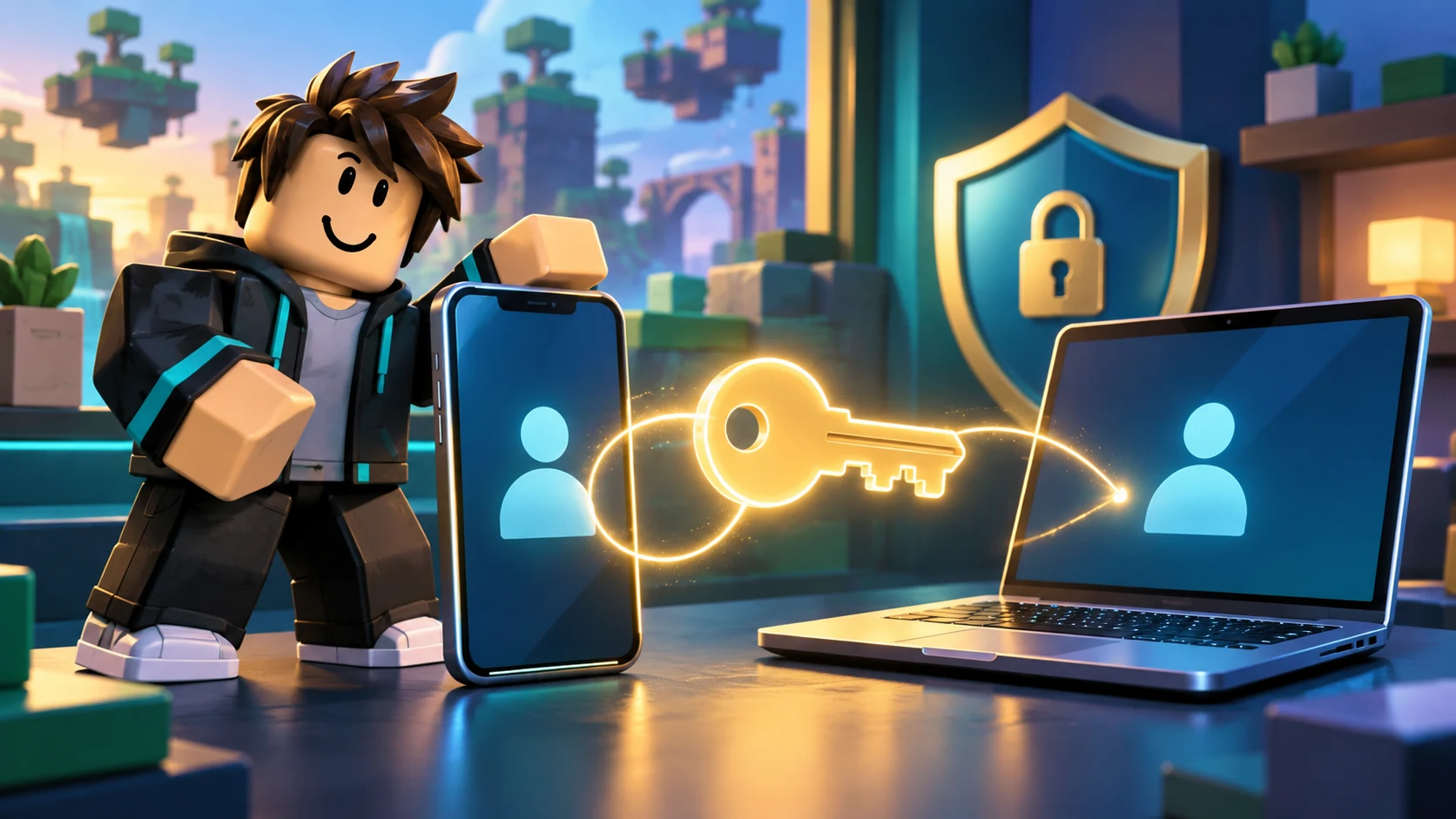
Cover: original AI-generated illustration featuring a fictional character and devices. This is not an official Roblox screenshot. Sources checked on October 12, 2026: the Roblox support pages and Microsoft documentation linked in the article.

Lucas, a 25-year-old from São Paulo, has found a vibrant space for his passion for games and technology in the Roblox universe. Owner of a blog dedicated to the platform, he dedicates himself to exploring the various virtual worlds, sharing tips and news, and analyzing the technical aspects that make the Roblox experience so captivating. His ability to write engaging articles turns his passion into valuable content for other enthusiasts. Living in São Paulo, Lucas reconciles his life in the metropolis with the creation of online content, building a bridge between the digital world of games and the world of technology.