


Chrome received a stable-channel update for computers on October 6, 2026. The official announcement reports 247 security fixes and a gradual rollout over the following days or weeks. For anyone who keeps many tabs open, the news is a practical reminder: checking the installed version and completing a pending restart are different tasks from simply continuing to browse normally.
The announcement lists versions 155.0.8059.39/.40 for Windows and Mac and 155.0.8059.39 for Linux. These numbers identify the release announced on that date; a later update may replace them. Our October 13 check provides context for the news, rather than a permanent list of safe versions. The most useful approach is to check the status displayed by the browser itself and the official guidance for your operating system.
1. Check for updates inside Chrome
On your computer, open the three-dot menu, go to Help and then About Google Chrome. Google’s documentation explains that this screen displays the current version and checks for updates. When an update is ready to apply, a Relaunch option may appear. This process avoids relying on an email message or a page presenting itself as an installer without any connection to the manufacturer.
Write down the complete number shown on the screen if you need help. Simply saying that you use Chrome does not identify the version running. Also record the operating system and the message displayed during the check. These details help distinguish a pending download, an administrative restriction and a connection error. You do not need to share passwords, browsing history or the contents of your tabs to describe the update status.
2. Prepare your tasks before restarting
Google says regular tabs and windows reopen after a restart, but Incognito windows are not restored. Before confirming, save anything you are writing in forms, editors and work systems. Reopening an address does not guarantee recovery of every piece of text that has not been submitted. A quick task review prevents a short maintenance break from becoming a search for unsaved content.
Plan the break around what you are doing. If a broadcast, file upload or customer interaction is underway, finish the activity appropriately before closing the browser. Do not treat the restart button as a command to use without considering the context. After returning, check the pages you need and resume your tasks. Updating can be routine, but preparation depends on the work open at that moment.
3. Understand what the security news confirms
The Chrome announcement lists issues classified as critical and high severity, among other fixes. It also explains that details of vulnerabilities may remain restricted until a larger share of users have updated, or while other affected projects await fixes. This limits what a public reading can establish: a list of identifiers is not, by itself, evidence that your computer has been attacked.
When reading headlines, separate three facts: a fix has been published, it is available for your environment, and it has already been applied to your device. These stages are not interchangeable. Nor is the number of fixes a simple scorecard for comparing browsers, because the announcement does not provide a standardized exposure comparison. Here, the figure of 247 reflects what the manufacturer reported about this particular release.
4. Follow the method for your system
Official help instructs Linux users to update Chrome through their package manager. On a Chromebook, updating involves the device’s operating system. On computers managed by a company or school, a policy may control installation. If the check says an administrator disabled updates, send the message to the responsible person instead of trying to remove controls or install a different copy to circumvent the rule.
If an error appears, record its exact wording before making changes. The support page distinguishes checking, downloading and server communication failures. It also suggests restarting the computer when an update has not completed. Avoid making several changes at once: if you change settings, reinstall programs and delete data in one sequence, it becomes harder to identify what solved or created a problem.
5. Confirm the result and keep the context
After restarting, return to About Google Chrome and observe the result. The absence of a restart request and the message from the check itself are more useful than comparing only an icon or the interface’s appearance. For work devices, a note with the date, version and result helps document maintenance. This record can be simple, without personal data or browsing information.
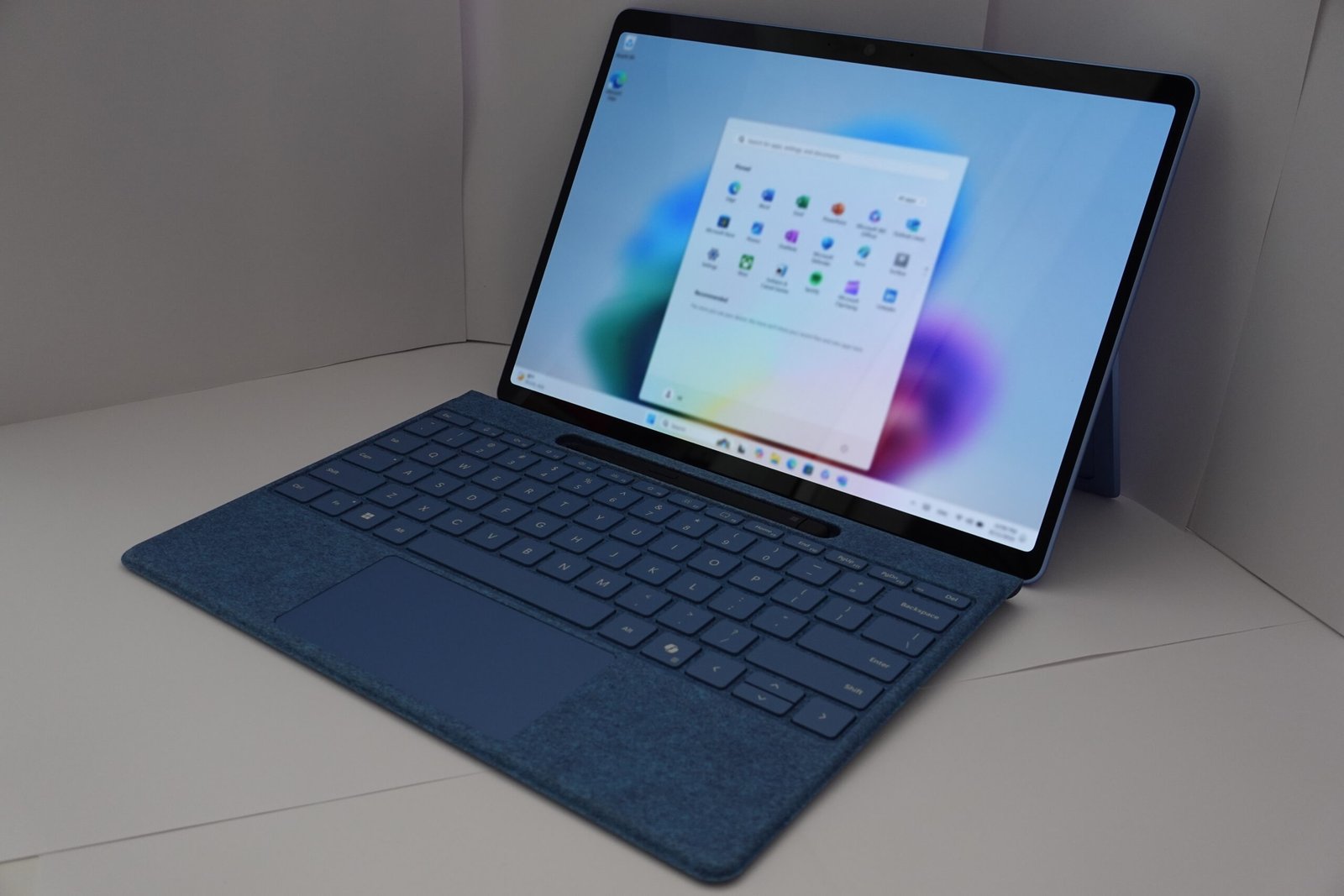
Keeping Chrome updated is one part of computer maintenance, not a promise of absolute protection. This week’s news warrants checking that step without installing tools of unknown origin or buying an additional service. The sources below let you review the announcement and the manufacturer’s procedure. The photograph illustrates a computer in 2024; it does not show this update screen or establish compatibility for a particular model.
Sources and further reading
October 6 announcement · How to update · Help with update errors · More news on MundoBlox

Lucas, a 25-year-old from São Paulo, has found a vibrant space for his passion for games and technology in the Roblox universe. Owner of a blog dedicated to the platform, he dedicates himself to exploring the various virtual worlds, sharing tips and news, and analyzing the technical aspects that make the Roblox experience so captivating. His ability to write engaging articles turns his passion into valuable content for other enthusiasts. Living in São Paulo, Lucas reconciles his life in the metropolis with the creation of online content, building a bridge between the digital world of games and the world of technology.